


Key Takeaways
- The app supports cash games, tournaments, and Spin & Go with full functionality.
- Android users can install from Google Play or download the APK directly.
- iOS players get a native app through the App Store.
- Multi-tabling up to 4 tables works the same on mobile as on desktop.
- Balances, history, and VIP progress sync automatically across every device.
Download the app below and get seated at a table in minutes.
Why Players Choose the BCPoker App Over the Browser
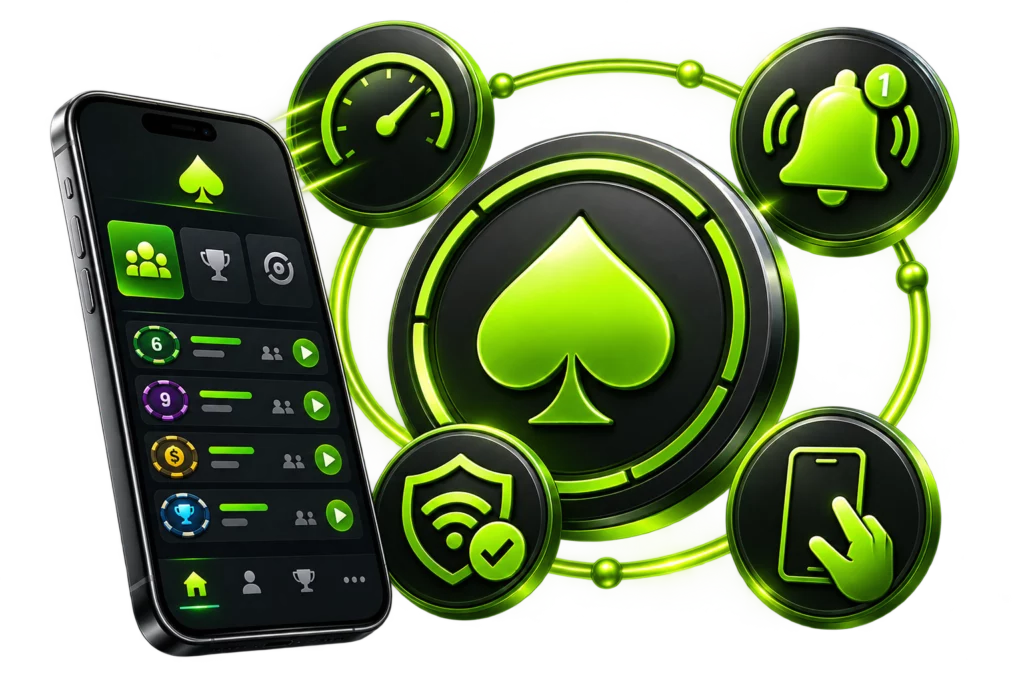
Switching from browser to the BCPoker App changes the feel of a session more than it might seem at first. Push notifications flag tournament start times and freeroll satellites directly – useful for anyone juggling a few different events across the day. Navigation between cash tables, Spin & Go, and tournament lobbies stays quicker too, with less loading between screens compared to a browser refresh. Connection stability tends to hold up better on the app as well, particularly for anyone multi-tabling across a slower or less consistent network. Players who joined using a BC Poker invitation code can also access their account and keep track of available rewards directly through the app. A few reasons come up most when players explain the switch:
- Faster loading between tables once the app caches assets locally;
- Push notifications for tournament starts, freerolls, and table invitations;
- More consistent connection stability during longer multi-tabling sessions;
- A layout built specifically for one-handed play on a smaller screen.
How to Download BC Poker: File Details and Requirements
Before starting a Download BC Poker session, it’s worth knowing what the device needs to run the app properly. On Android, the file’s a standard APK package if downloaded directly from the site, or a standard Play Store install if going through Google’s marketplace instead. Requirements stay modest either way – accessible even on mid-range hardware. Here’s the baseline:
| Requirement | Minimum Specification |
| Operating System | Android 6.0+ / iOS 13.0+ |
| Free Storage | 150 MB or more |
| Internet Connection | Stable Wi-Fi or mobile data |
| Device Type | Smartphone or tablet |
Step-by-Step BC Poker Download Guide for Android
Getting a BC Poker Download running on Android takes just a few steps, whether the file comes from the Play Store or the official site directly. Here’s the order for a direct APK install:
- Open a mobile browser and go to the official bcpoker.com download page.
- Locate the Android download section and tap the APK download link.
- Enable installation from unknown sources in the device’s security settings, if prompted.
- Wait for the transfer to finish, tracked through the notification bar.
- Open the downloaded file and follow the on-screen prompts to complete setup.
Most players get through the whole thing in well under five minutes, even on a moderate connection.
Getting the BC Poker App on iOS Devices
A BC Poker App Download on iOS works differently, since Apple’s ecosystem requires apps to come through the official App Store rather than a direct download. Searching “BCPoker” in the App Store pulls up the official listing, installation running the same standard process used for any other app. No manual permission changes or security setting adjustments needed beforehand – unlike the extra step Android sometimes requires for outside-the-store files.
The last one was received 5 minutes ago
Confirming the File Before Installation
A quick check before opening the downloaded file helps confirm everything transferred correctly. On Android, a noticeably small file size compared to what’s listed on the official page usually points to an interrupted download. Comparing the version number shown before installation against the current release on the site is a simple way to confirm it’s up to date before proceeding.
Installing the BC Poker App Download on Your Device
Running the BC Poker App Download file on Android kicks off the standard installer, checking the file for basic integrity before showing a screen with the app name and requested permissions. Tapping install typically wraps up within a minute – a shortcut appears on the home screen or app drawer right after. On iOS, the App Store handles the whole installation automatically once the download’s confirmed, no additional setup screens to click through.
Granting Permissions During Setup
Android may prompt for storage access and notification permissions during setup, both tied to saving session data and delivering alerts about tournaments or table activity. iOS handles most of this through its own standard permission prompts, shown the first time a specific feature – notifications, say – actually gets used. None of these permissions grant access to anything unrelated on the device, and every one can be reviewed or adjusted later in the phone’s settings.
What Happens After the BCPoker App Is Installed
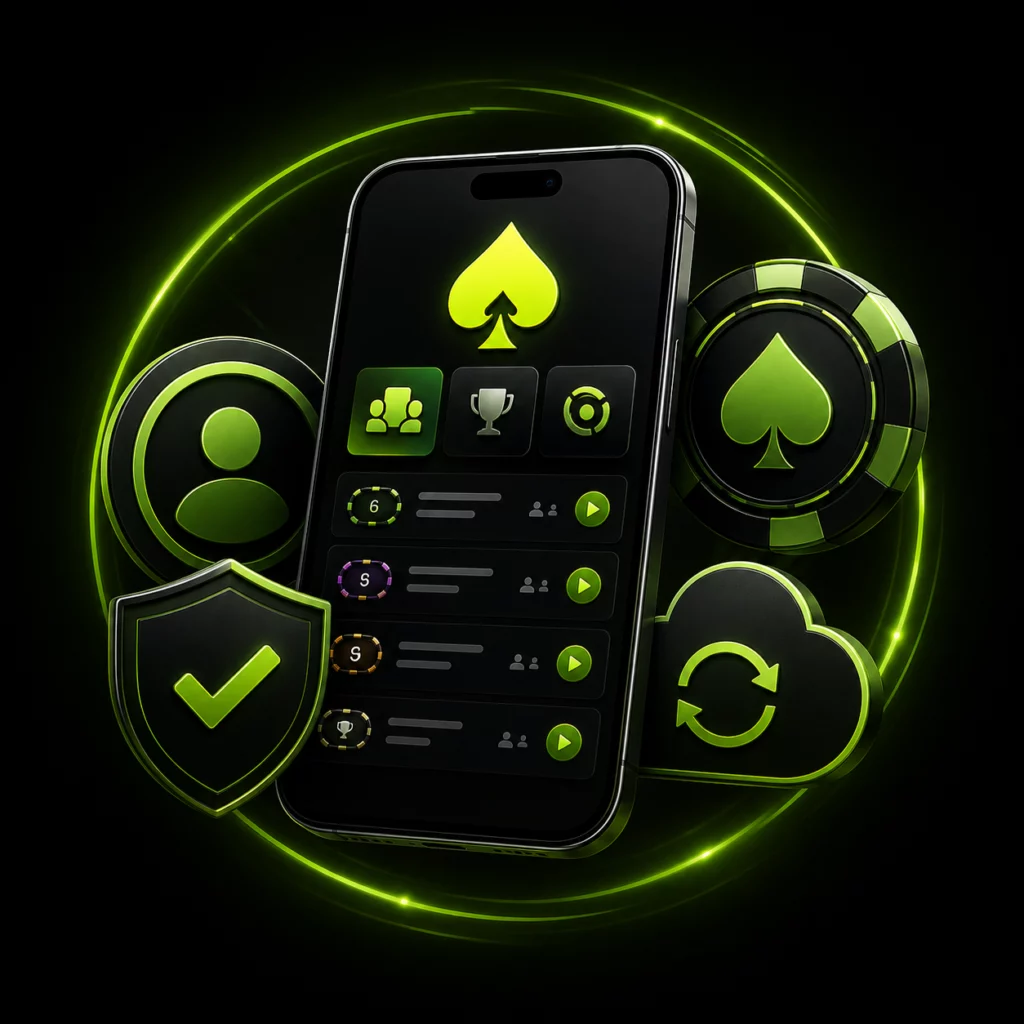
The BCPoker App finishes installing, and opening it drops straight into a login screen. Existing account holders sign in with their usual credentials; new visitors can register right from the same screen. The full lobby becomes available the moment login completes – Cash Game, Tourney, Spin & Go tabs, filters for stakes, seat count, and buy-in all ready to use right away. Balances, hand history, VIP progress – all of it carries over automatically from the browser version, since both connect to the same account.
Playing on Desktop Versus the BC Poker App
No separate desktop client to install for BC Poker – the desktop experience runs entirely through a browser rather than a downloadable program. That makes the comparison less about features and more about screen size and convenience. Desktop suits longer sessions with more visible on a bigger display, while the BC Poker App favors quick access and one-handed play tuned for smaller screens. Multi-tabling up to 4 tables works identically on both, and neither version limits which formats or stakes are on offer.
Keeping Your BC Poker Download Updated
Running the current version of the BC Poker Download keeps performance stable and unlocks new features or table formats as they roll out. On Android, updates installed directly from the site don’t apply themselves in the background – unlike Play Store installs, which typically update on their own. A notification or in-app prompt usually flags when a new version lands, with a direct link to grab it. iOS updates run through the standard App Store process, automatically or with a manual check.
Troubleshooting Common Installation Issues
Most installation issues come down to a handful of common causes, each with a fairly simple fix:
- Installation blocked on Android: enable “Unknown Sources” or “Install unknown apps” before opening the file;
- Insufficient storage: free up at least 200 MB and restart the installer;
- Interrupted download: delete the file and try again over a more stable connection;
- App Store install stuck on iOS: restart the device and retry the download from the App Store;
- Outdated operating system: update to a supported OS version before attempting installation again.